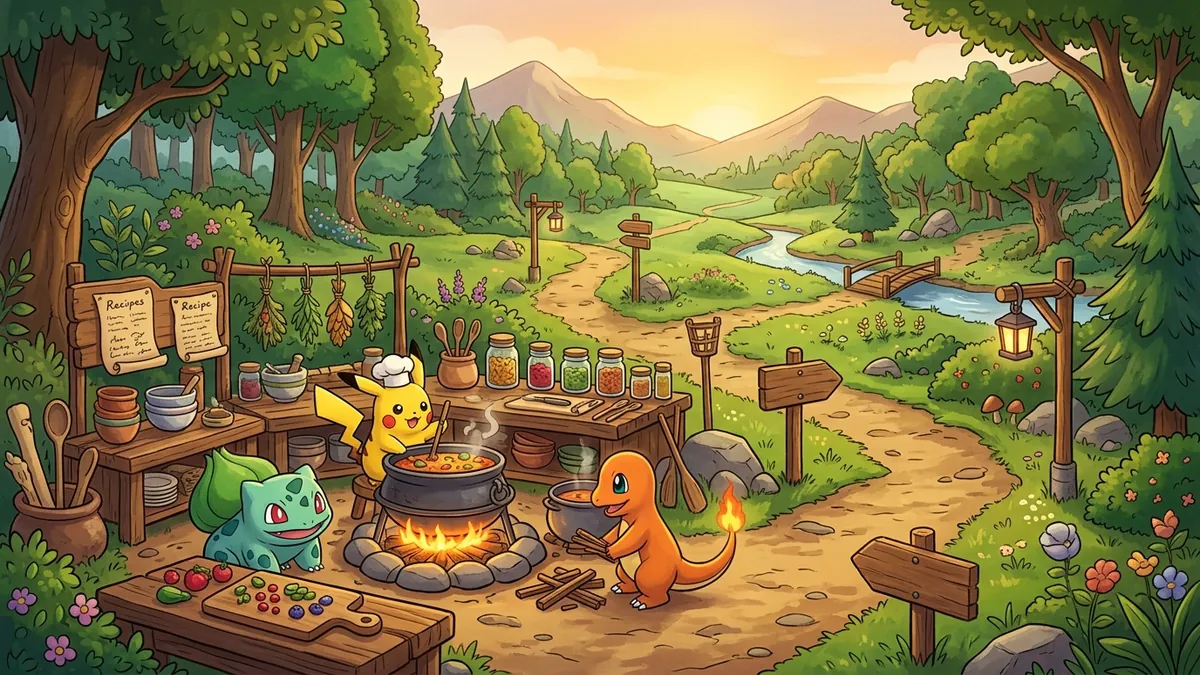
The fastest reliable Pokopia storage system is simple: separate boxes by item type, display one representative item in a frame, keep crafting materials beside the workbench, and hold X to sort each inventory. Version 2.0.0 makes the routine much faster by adding bulk movement between your bag and a storage box.
This page previously described nonexistent storage upgrades and automation as if they were in the game. That material has been removed. Every named container, recipe, shortcut, and update change below is tied to Nintendo, The Pokemon Company, or Serebii.
Nintendo’s official tips recommend similar-item boxes, holding X to sort, and placing a box next to a workbench. The Pokemon Company’s official Pokopia planner also recommends organizing each container by item type.
Best Pokopia Storage Setup in Seven Steps
Use this order if your bag is already full:
- Check the Pokemon Center PC shop for Packing Tips and Handy Bag upgrades.
- Craft more Storage Boxes as soon as the recipe unlocks.
- Split items into six broad categories instead of making one box per item.
- Place the materials box directly beside your main workbench.
- Use frames with sample items to make categories visible before opening a box.
- Hold X inside the bag or box whenever the order becomes messy.
- Use version 2.0.0 bulk transfer for large deposits and withdrawals.
This setup stays readable without filling the town with dozens of narrowly labeled containers. It also keeps frequently used materials close to the activity that consumes them.
Real Storage Box Recipes
The Serebii Storage Box entry and Serebii crafting database document the early recipes:
| Container | Unlock | Recipe | Best use |
|---|---|---|---|
| Storage Box | Register 6 Pokemon | 1 Lumber | First category boxes and local overflow |
| Wall Storage Box | Daily shop special | 2 Pokemetal | Compact rooms and vertical layouts |
| Big Storage Box | Register 30 Pokemon | 3 Pokemetal | High-volume building and crafting materials |
The Big Storage Box is described in the item list as roughly three times larger than the standard model. That makes it the natural upgrade for Lumber, Stone, blocks, plants, and other categories that accumulate quickly.
Pokopia also contains decorative containers that function as storage, including Plain Chest, Office Cabinet, Gaming Fridge, Poke Ball Chest, Berry Case, Antique Chest, Plain Closet, Office Locker, and Antique Closet. Use their appearance to reinforce a category, but check the in-game interaction before assuming any furniture-shaped object is a container. For example, a shelf may be decorative even when it visually looks like storage.
How to Sort Bag and Storage Boxes
Nintendo’s official Pokopia tips give the direct shortcut: open the bag or storage box, then press and hold X to sort its contents.
This is a manual command. You do not need to craft a sorting device or attach a special upgrade to a box.
Sorting works best after the broad category split. If food, furniture, blocks, and utilities all share one container, a cleaner item order still leaves a long list. Category-first storage reduces the search space before the X-button sort even begins.
A Category System That Scales
Start with these six containers:
| Frame item | Category | Put inside |
|---|---|---|
| Lumber | Building materials | Lumber, Stone, ores, ingots, glass, blocks |
| A vegetable | Food | Ingredients, berries, cooked dishes, drinks |
| A seed or flower | Plants | Seeds, flowers, farm items, nature pieces |
| A chair | Furniture | Decoration, relaxation, toy, indoor furniture |
| A road piece | Town building | Roads, fences, outdoor pieces, utilities |
| A rare item | Special | Lost relics, event items, hard-to-replace materials |
When one category fills repeatedly, split only that category. Building materials usually become separate boxes for wood, mineral, and blocks first. Avoid making twenty tiny categories on day one; it creates more doors to open without solving the most common retrieval problem.
Keep the same left-to-right order in each town. A consistent layout is more useful than a perfect room because muscle memory survives travel.
Label Boxes with Frames
A frame can display a representative item on or above a storage container. Use Lumber for building materials, a berry for food, a seed for plants, and so on. The label remains visible from outside the inventory screen.
The goal is recognition, not decoration. Pick an item with a strong silhouette and reuse it everywhere. If the sample item is too rare to spare, choose a common object from the same category.
For a compact room, mount or stack containers only when every interaction point remains reachable. Test opening each box before duplicating the layout across the town.
Craft Directly from Nearby Storage
Place the materials box next to the workbench. Nintendo’s official tips state that the workbench can access materials in that adjacent box.
The official version 2.0.0 notes add an important detail: during crafting, materials from the storage box next to the workbench are now consumed before matching materials in the bag.
That priority lets you protect the bag for exploration. Deposit routine Lumber, Stone, Pokemetal, and other recipe materials beside the bench; when crafting, the local supply is spent first.
Do not assume every box in the room links to every station or rely on an invented radius. Keep the relevant container visibly adjacent and verify the recipe screen recognizes its contents.
For recipe planning, use the complete crafting guide and the recipe tracker.
Version 2.0.0 Bulk Move
Version 2.0.0 added a function to move items in bulk between a storage box and the bag. Update the game if the option is absent: from the Switch 2 HOME Menu, highlight Pokopia, press + or -, and check the version under the software title.
The practical loop is:
- Open the correct category box.
- Use bulk movement for the large deposit or withdrawal.
- Hold X to sort after the transfer.
- Move any exceptions to the correct neighboring category.
Bulk movement saves inputs; it does not decide categories for you. The visible frame system is still what prevents an item from disappearing into the wrong container.
Expand the Bag Before Adding More Boxes
Nintendo recommends prioritizing Packing Tips and Handy Bag upgrades from the Pokemon Center PC shop. A larger bag reduces emergency deposits and lets you finish a collecting route before returning to storage.
Check the shop regularly because its useful inventory changes with progression. This guide does not assign a fixed price or slot increase without a current official table.
Pair bag upgrades with a small return box near your town entrance. Deposit newly gathered items there only when you are in a hurry, then clear it into the category system before the next trip. A permanent unsorted overflow box eventually recreates the same problem.
Storage Layouts for Different Towns
Starter corner: one row of six Storage Boxes, each with a frame. Put the materials box beside the workbench and food near the cooking area.
Workshop wall: Big Storage Boxes for high-volume categories, with the workbench centered beside the materials container. Leave enough space to open every box without targeting the frame.
Satellite cache: in each town, keep local building materials, food, and a general return box. Store only the items you routinely use there; a full duplicate warehouse in every area creates more maintenance.
Cloud Island build kit: separate containers for blocks, furniture, outdoor pieces, and utilities. Review the Cloud Island guide before moving material for a shared build.
Common Storage Mistakes
One container for everything: sorting changes order, not category. Split the inventory first.
No visible labels: a room of identical boxes forces repeated opening. Add frames.
Crafting box too far away: put the material container directly next to the workbench and confirm the recipe detects it.
Ignoring version 2.0.0: bulk transfer and storage-first crafting remove many repetitive inputs.
Different layout in every town: reuse the same category sequence so you know where to look immediately.
Treating decorative furniture as functional storage: test the interaction. The Serebii item database distinguishes real containers from look-alike furniture.
FAQ
How do I sort storage in Pokemon Pokopia? Open the bag or container, then press and hold X.
How do I unlock the Storage Box? Register 6 Pokemon; the documented recipe costs 1 Lumber.
How do I unlock the Big Storage Box? Register 30 Pokemon; the documented recipe costs 3 Pokemetal.
Can a workbench use stored materials? Yes, from the storage box next to it. Version 2.0.0 consumes that box’s matching materials before items in your bag.
What changed in version 2.0.0? Nintendo added bulk movement between bag and storage and changed nearby workbench crafting priority.
How should I label boxes? Display one recognizable item in a frame on or above each category container.
Can I expand the bag? Yes. Look for Packing Tips and Handy Bag in the Pokemon Center PC shop.
What categories should I start with? Building materials, food, plants, furniture, town pieces, and special items cover most early storage.
Sources and Correction Note
- Nintendo: official Pokopia organization and workbench tips
- Nintendo Support: version 2.0.0 storage changes
- The Pokemon Company: official digital planner and category tip
- Serebii: Storage Box item and recipe
- Serebii: crafting and container recipes
This page was fact-corrected on August 25, 2026. Email contact@pokopia.center with the page URL and current in-game or official evidence if a later update changes a control or recipe.